Add MCP Server to Claude Desktop
To use elmah.io tools in Claude Desktop, you need a Claude subscription with Custom Connectors available.
- Open Claude Desktop and go to File > Settings.
- Beneath Desktop app, click the Extensions tab:
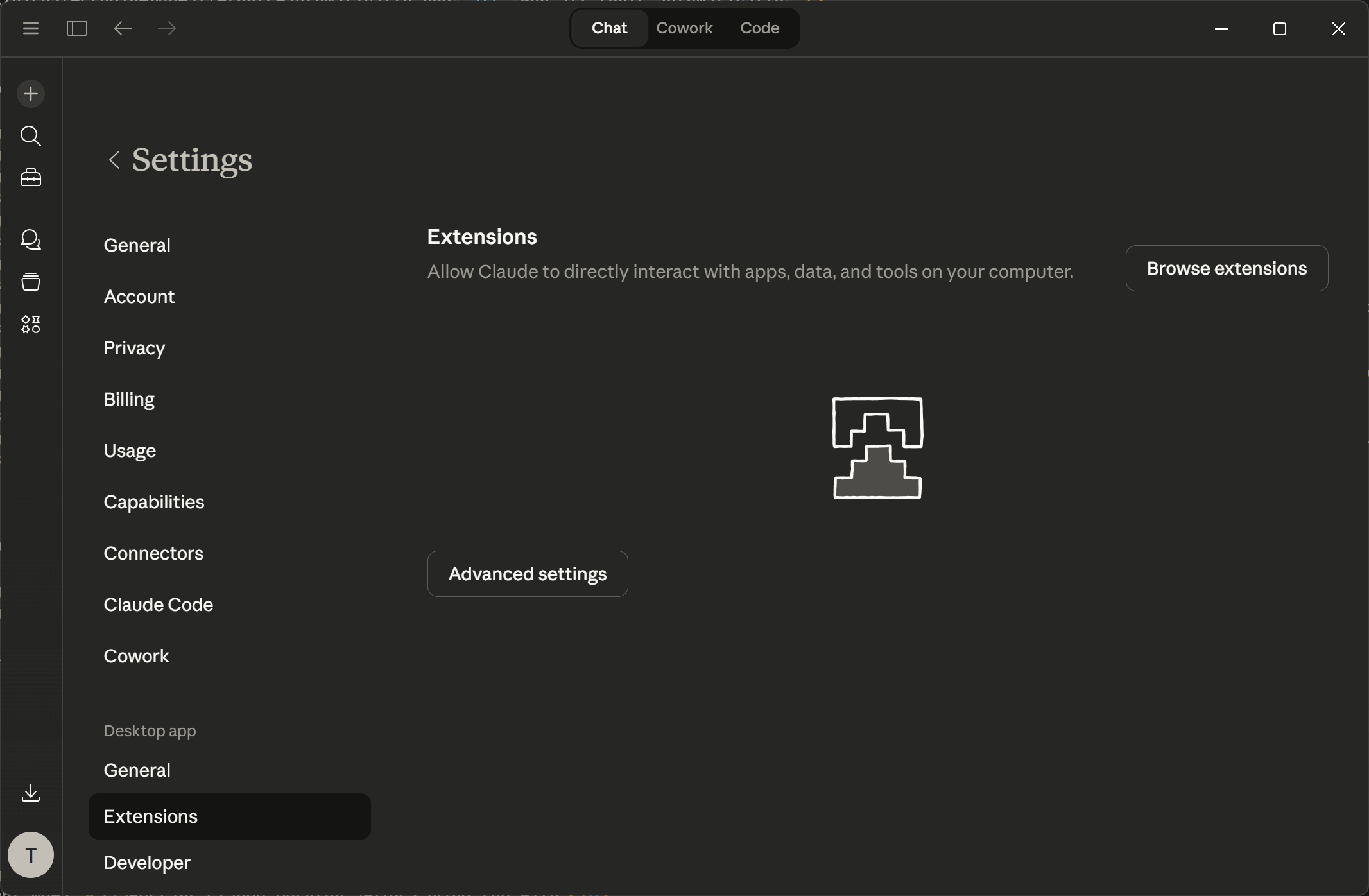
- Click the Browse extensions button, then click the custom connector link in the top:
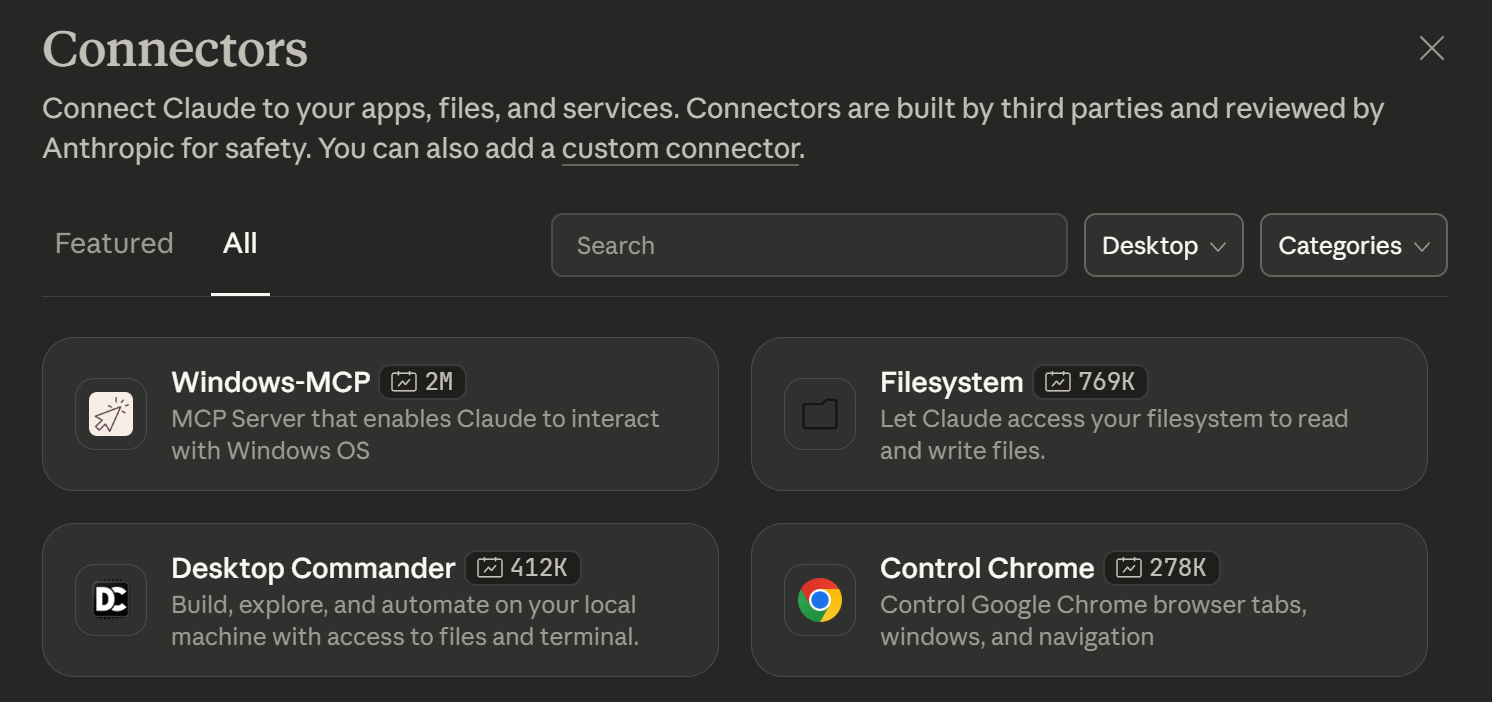
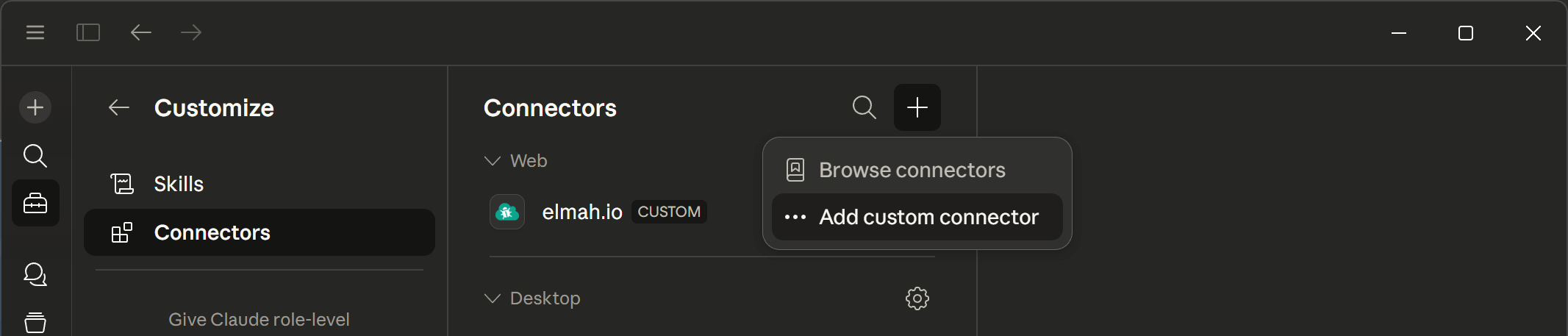
- Click the Plus icon and select the Add custom connector option:
- In the Add custom connector dialog, input the values for the elmah.io MCP server as shown below:
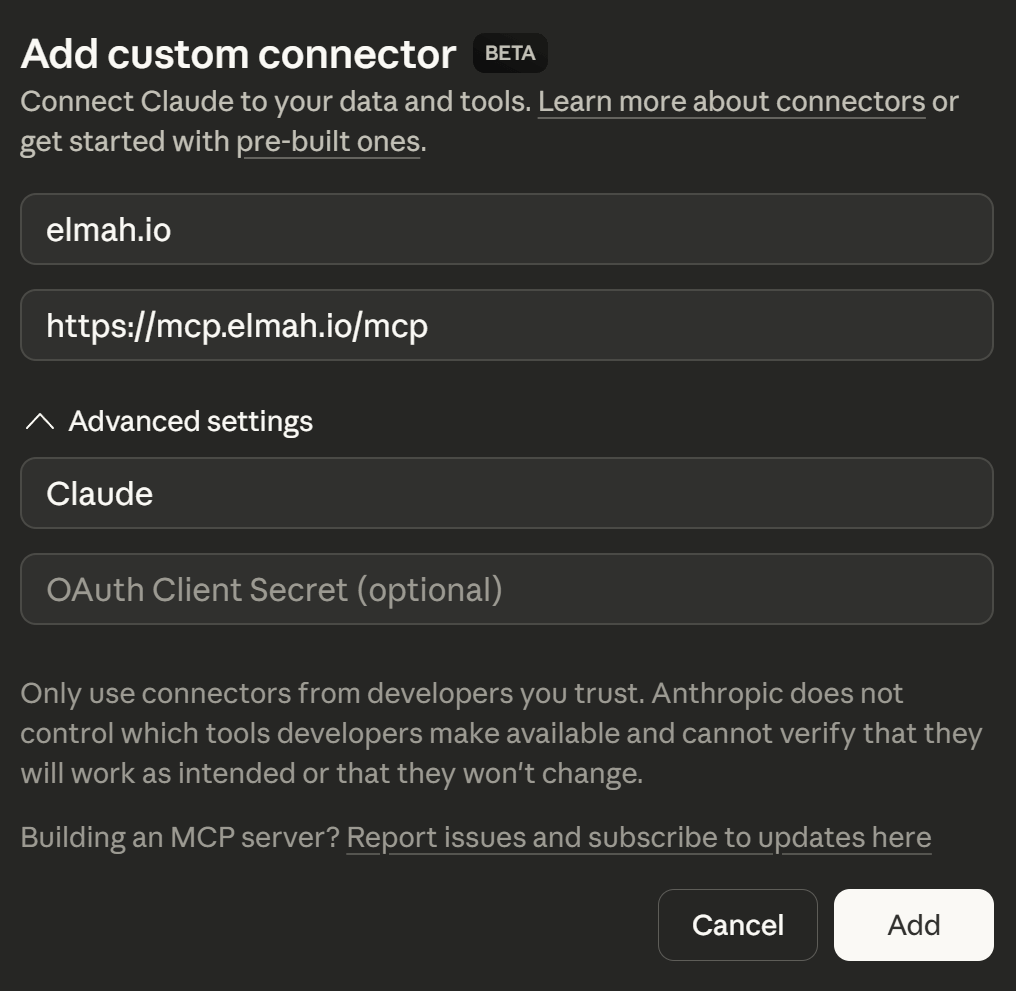
- Click the Add button and a browser window will open, asking you to sign into elmah.io.
- After signing in, you'll see a Confirm access screen showing the destination you'll be redirected to. Click Continue to proceed.
- When signed in, the elmah.io connector will be added to the list of Web connectors and the available tools will be listed when selecting the connector:
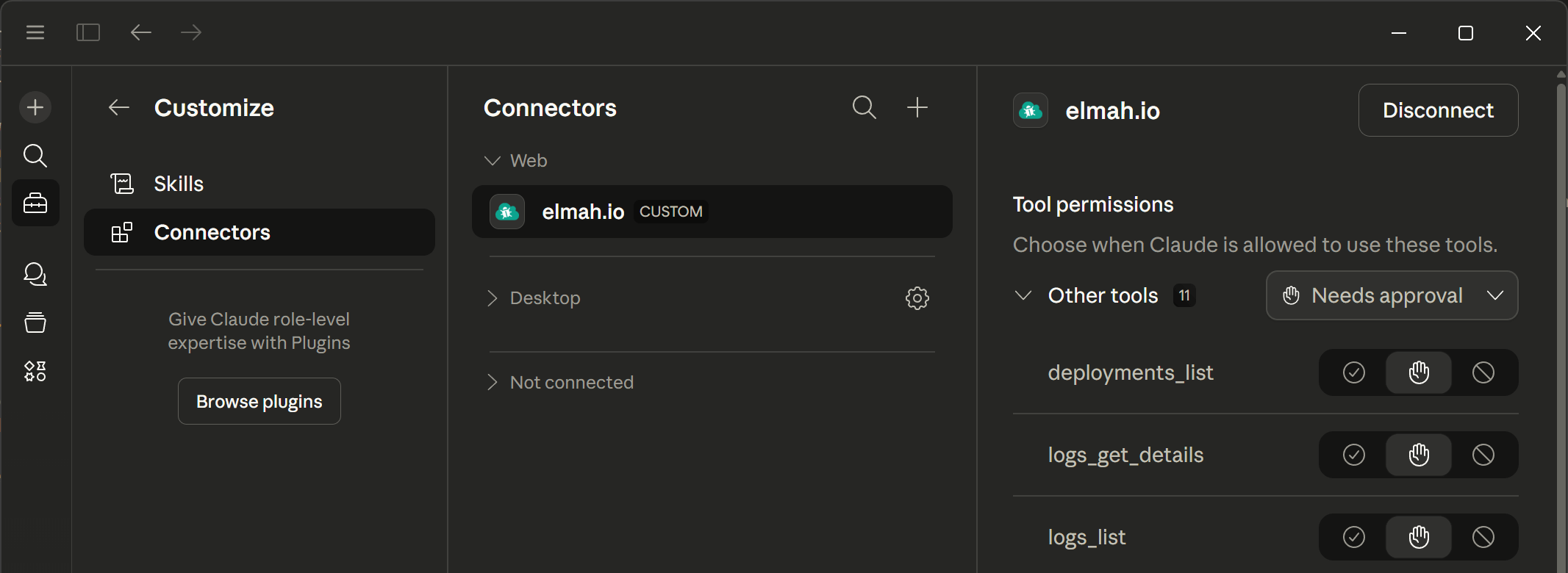
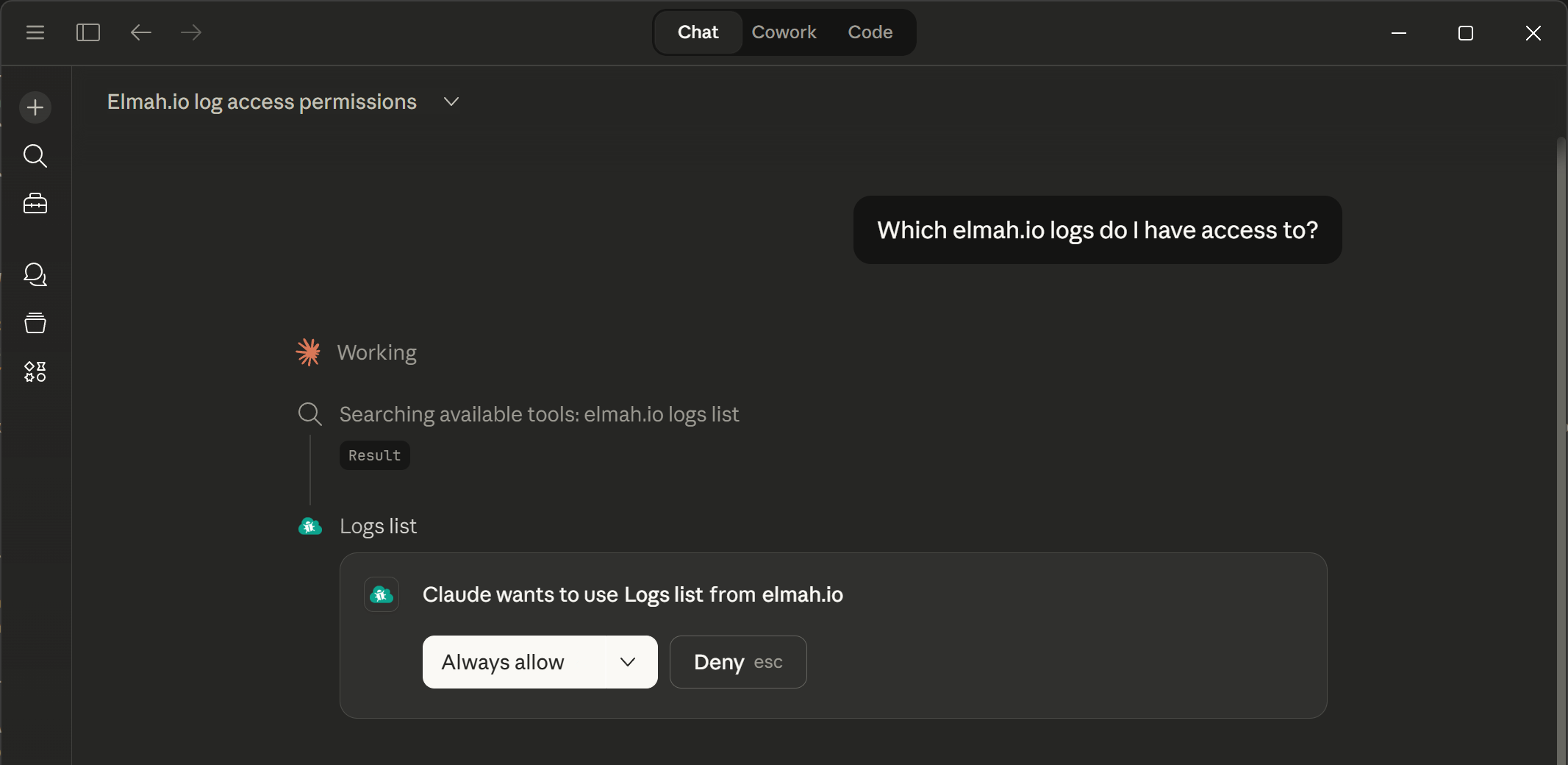
- The elmah.io MCP server is now ready for use. You will be asked permission every time Claude Desktop wants to call a tool. You can select Always allow on all or individual tools on the settings screen, or in the dropdown on the chat window to allow Claude Desktop to always call a tool when needed:
This article was brought to you by the elmah.io team. elmah.io is the best error management system for .NET web applications. We monitor your website, alert you when errors start happening, and help you fix errors fast.
See how we can help you monitor your website for crashes Monitor your website