Add MCP Server to VS Code
VS Code offer integrated MCP support. Learn how to set up elmah.io's MCP server in the following steps.
- Inside of VS Code, click CTRL + Shift + p to open the search view.
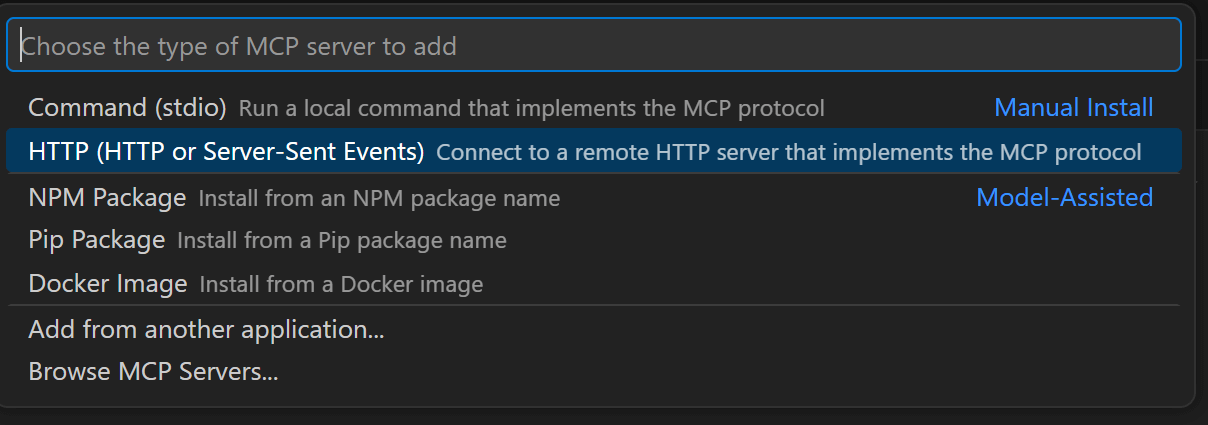
- Search for 'mcp:' and click MCP: Add server....
- Select HTTP in the choose MCP server type dropdown:
- Input the elmah.io MCP server URL in the Enter Server URL field:

- Input a name for the MCP server:

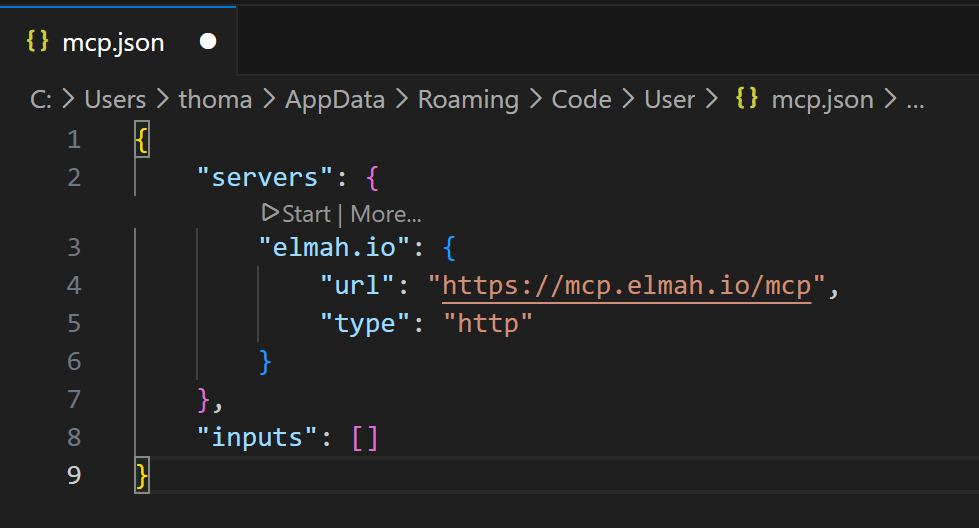
- A new file named
mcp.jsonis added to the code window. If VS Code doesn't automatically prompt you to authenticate, click the Start link above the MCP server name:
- VS Code will prompt to authenticate. Click the Allow button.
- VS Code will prompt to open an external website. Click the Open button and a browser will open, asking you to sign into elmah.io.
- After signing in, you'll see a Confirm access screen showing the destination you'll be redirected to. Click Continue to proceed.
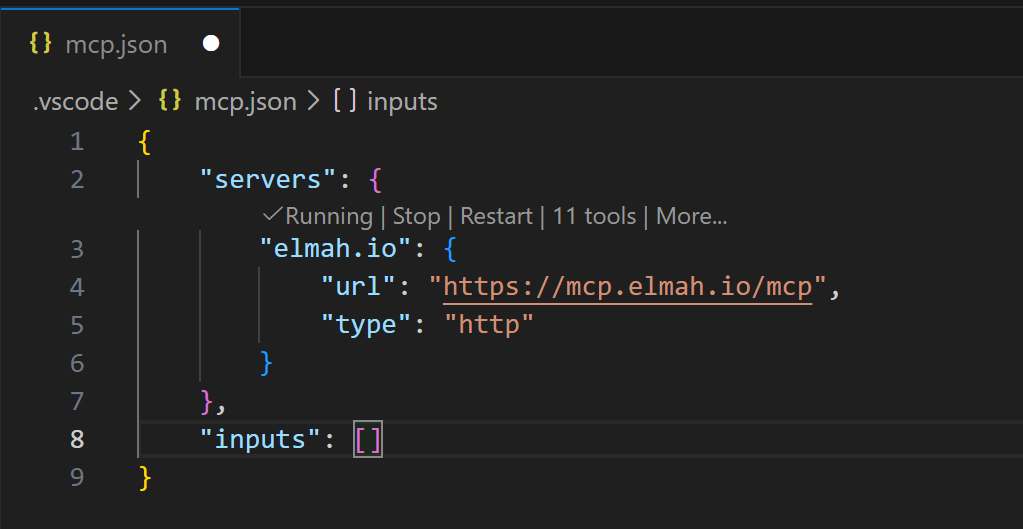
- When signed in, VS code will show the discovered MCP tools:
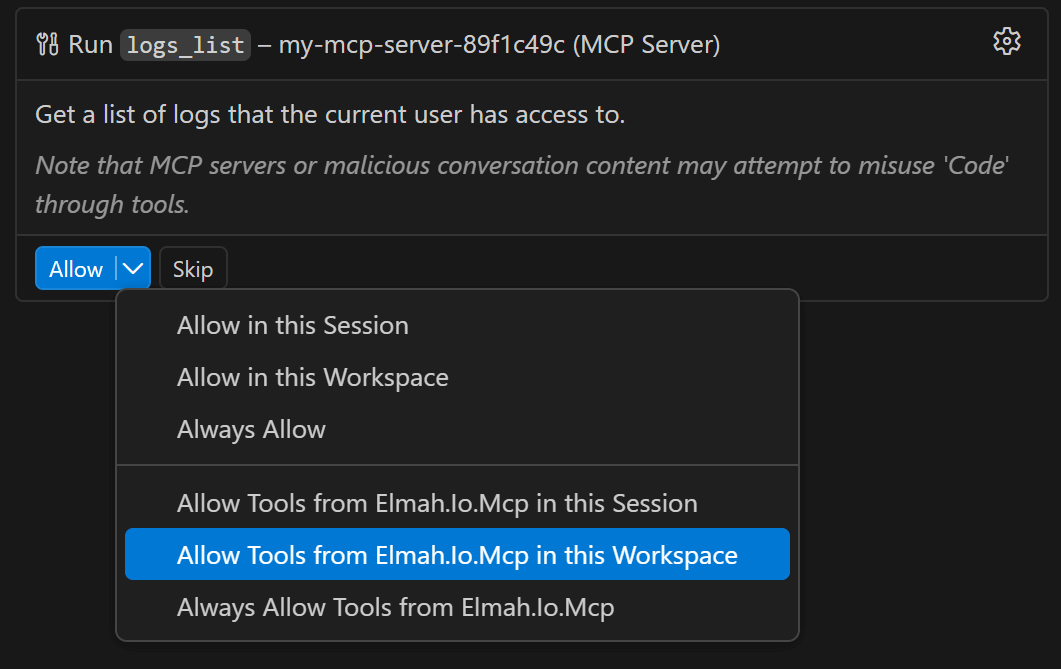
- The elmah.io MCP server is now ready for use. You will be asked permission every time VS Code wants to call a tool. You can allow all tools by selecting Allow Tools from Elmah.Io.Mvc in this Workspace:
This article was brought to you by the elmah.io team. elmah.io is the best error management system for .NET web applications. We monitor your website, alert you when errors start happening, and help you fix errors fast.
See how we can help you monitor your website for crashes Monitor your website