Add MCP Server to Cursor AI
Cursor supports MCP natively. Follow these steps to integrate elmah.io.
Note
Prefer prebuilt skills over writing your own prompts? See the elmah.io AI Plugin instead, which installs the MCP server together with ready-made skills and a background monitoring agent.
- Inside of Cursor, click File > Preferences > Cursor Settings to open the Cursor Settings screen.
- In the left menu, click the Tools & MCP item.
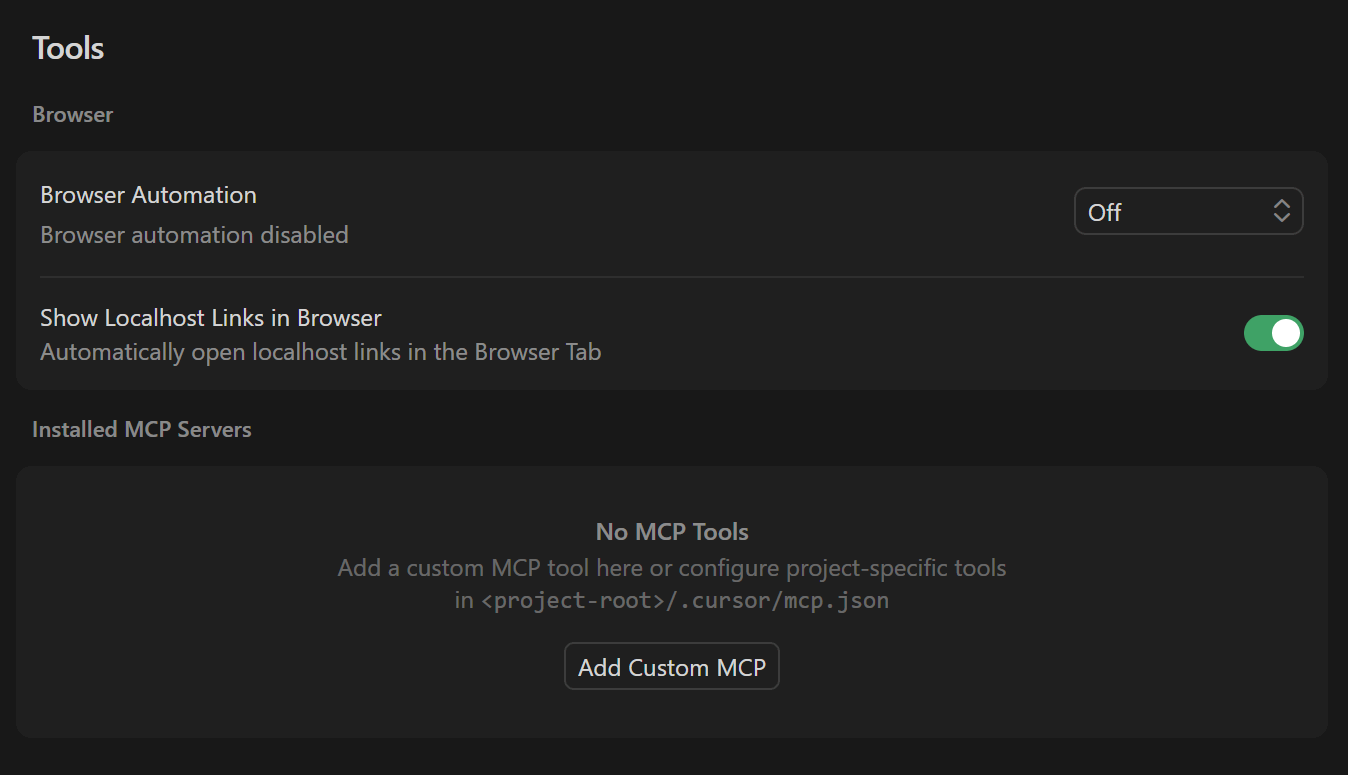
- Click the Add Custom MCP item which will open a file editor on the
mcp.jsonfile. - Add the following MCP configuration to include elmah.io's MCP server:
{
  "mcpServers": {
    "elmah.io": {
      "url": "https://mcp.elmah.io/mcp",
      "auth": {
        "CLIENT_ID": "cursor"
      }
    }
  }
}
- Navigate back to Cursor Settings and observe the elmah.io MCP server is now added and need authentication:
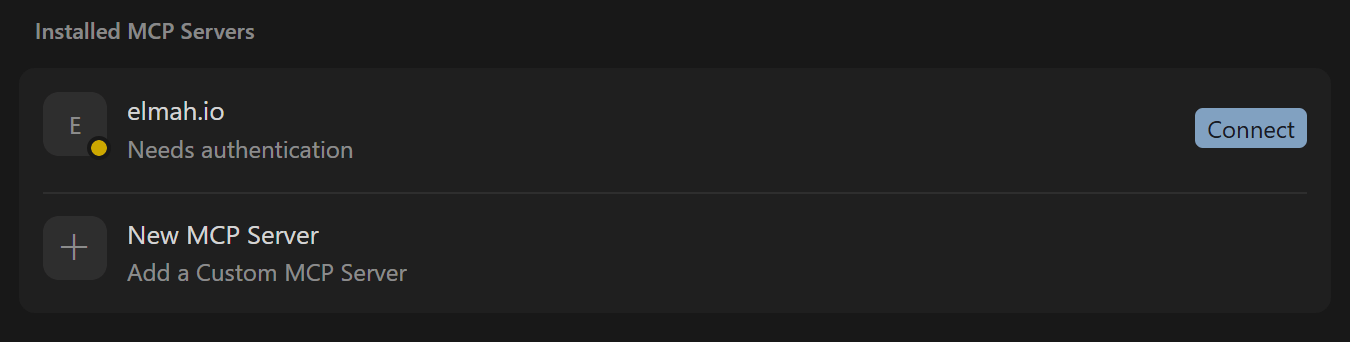
- Click the Connect button and allow Cursor to open an external website. A browser window will open, asking you to sign into elmah.io.
- After signing in, you'll see a Confirm access screen showing the destination you'll be redirected to. Click Continue to proceed.
- When signed in, the elmah.io MCP server will be added to the list of installed MCP servers and the available tools will be listed when expanding the server. The MCP server is now ready for use.
This article was brought to you by the elmah.io team. elmah.io is the best error management system for .NET web applications. We monitor your website, alert you when errors start happening, and help you fix errors fast.
See how we can help you monitor your website for crashes Monitor your website