Add MCP Server to Perplexity AI
Perplexity AI supports adding MCP servers through Connectors. You will need a paid subscription of Perplexity to add custom connectors.
- Inside Perplexity, click your profile in the lower left corner and click on All settings.
- In the left menu, click Connectors. This will show the list of available connectors:
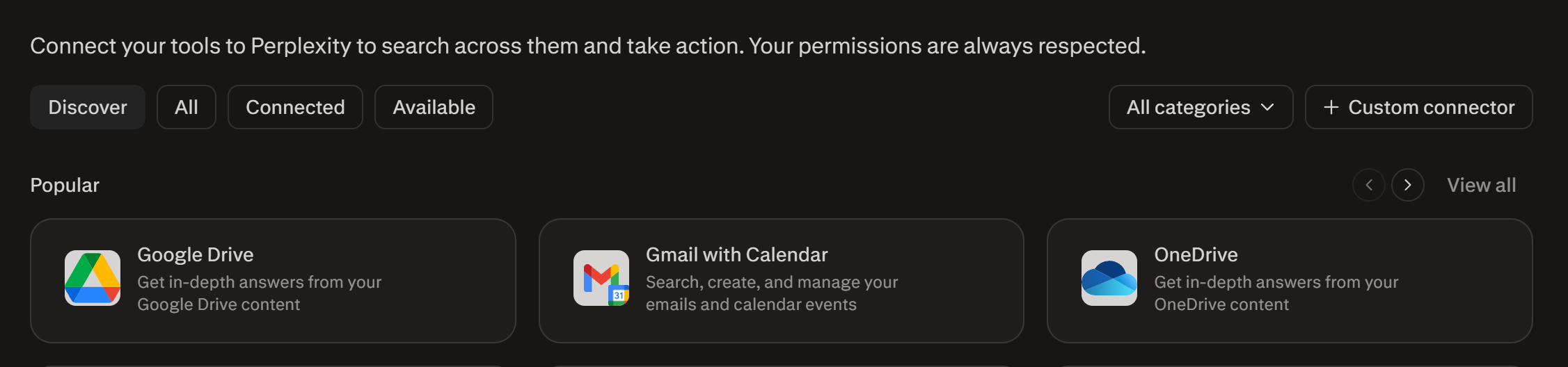
- Click the + Custom connector button and input the following values:
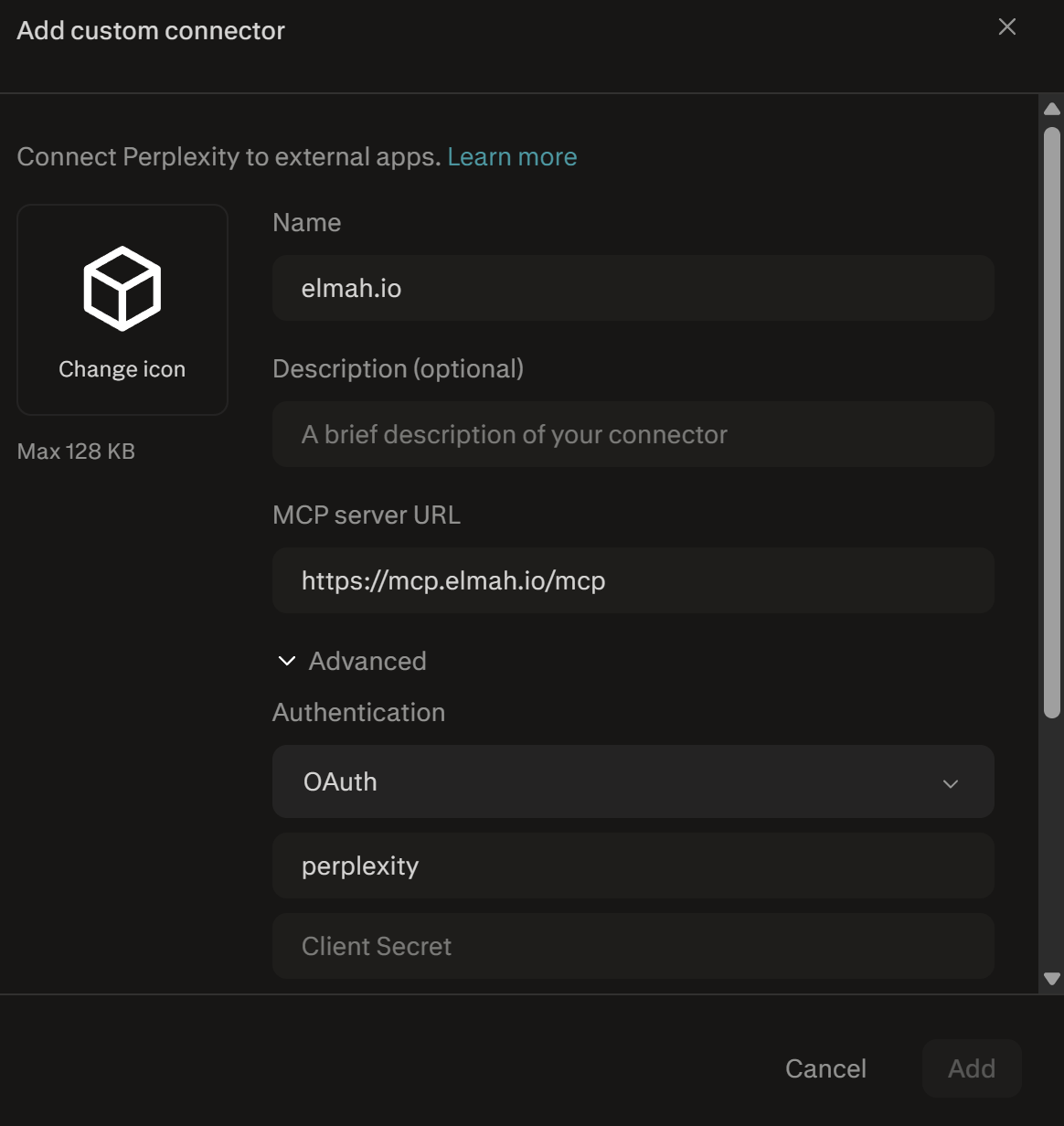
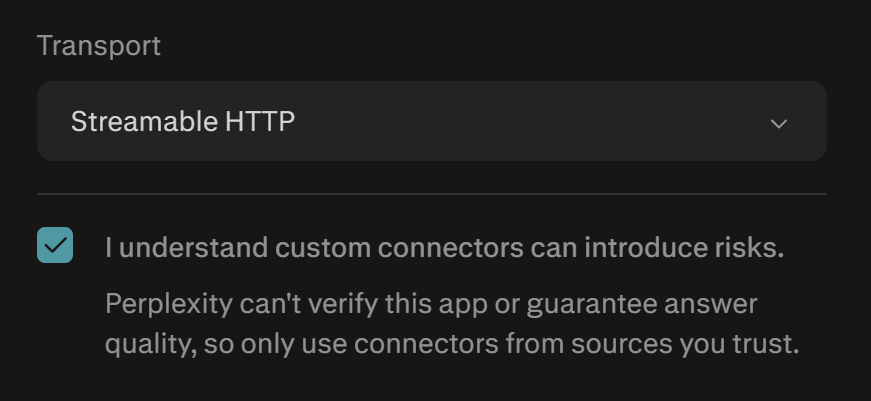
- Make sure to expand Advanced, select OAuth, and input a Client ID of your choice. Also select Streamable HTTP beneath Transport and enable the checkmark in I understand custom connectors can introduce risks:
- Click the Add button and search for the new connector:
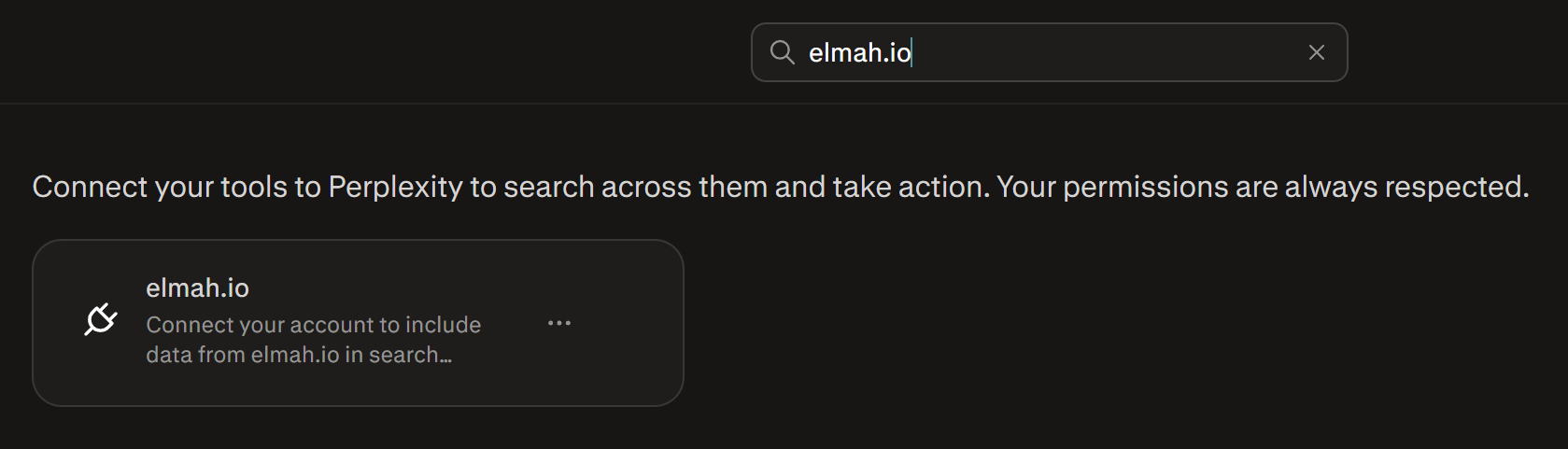
- Click the connector in the search result. A browser window will open, asking you to sign in to elmah.io.
- After signing in, you'll see a Confirm access screen showing the destination you'll be redirected to. Click Continue to proceed. Perplexity will then show a checkmark next to the connector:
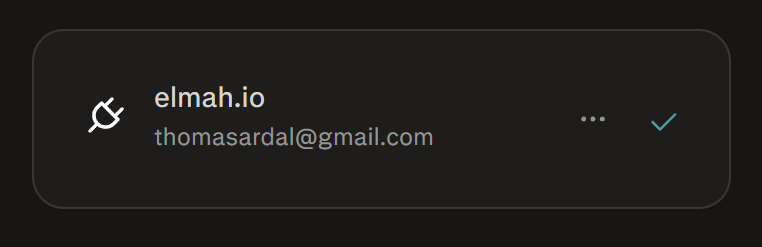
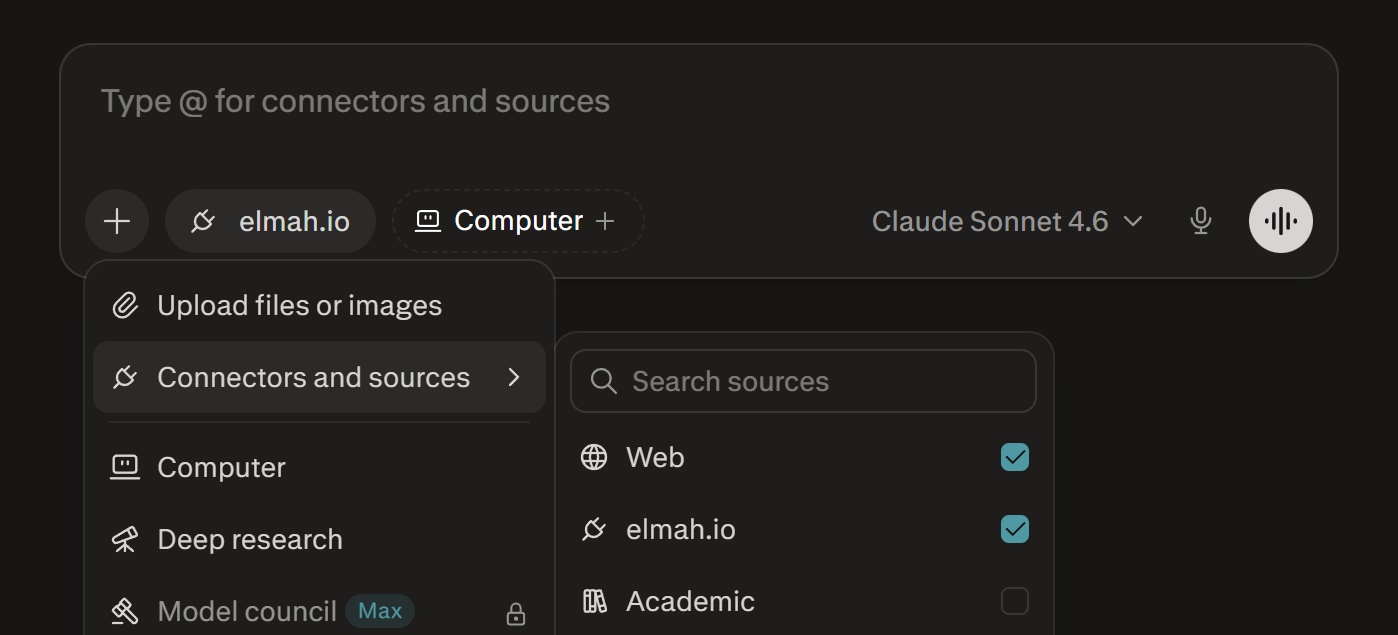
- On the prompt page, make sure to enable the elmah.io connector to allow Perplexity to call the MCP server:
This article was brought to you by the elmah.io team. elmah.io is the best error management system for .NET web applications. We monitor your website, alert you when errors start happening, and help you fix errors fast.
See how we can help you monitor your website for crashes Monitor your website